Getting Started with SimpleMD: Your First 5 Minutes
Taking notes should be simple. No complicated software. No endless menus. No learning curve.
That is why we built SimpleMD. It is a fast, minimalist markdown editor that lives right in your browser. No account required. No setup needed. Just open a new tab and start writing.
In this guide, you will go from zero to your first note in under 5 minutes.
Step 1: Install the Extension
Getting SimpleMD takes just a few clicks:
Visit the Chrome Web Store and search for "SimpleMD"
Click Add to Chrome
Confirm by clicking Add Extension
That is it. SimpleMD is now installed and ready to use.
Step 2: Open SimpleMD
You have three ways to open SimpleMD:
Click the extension icon in your Chrome toolbar
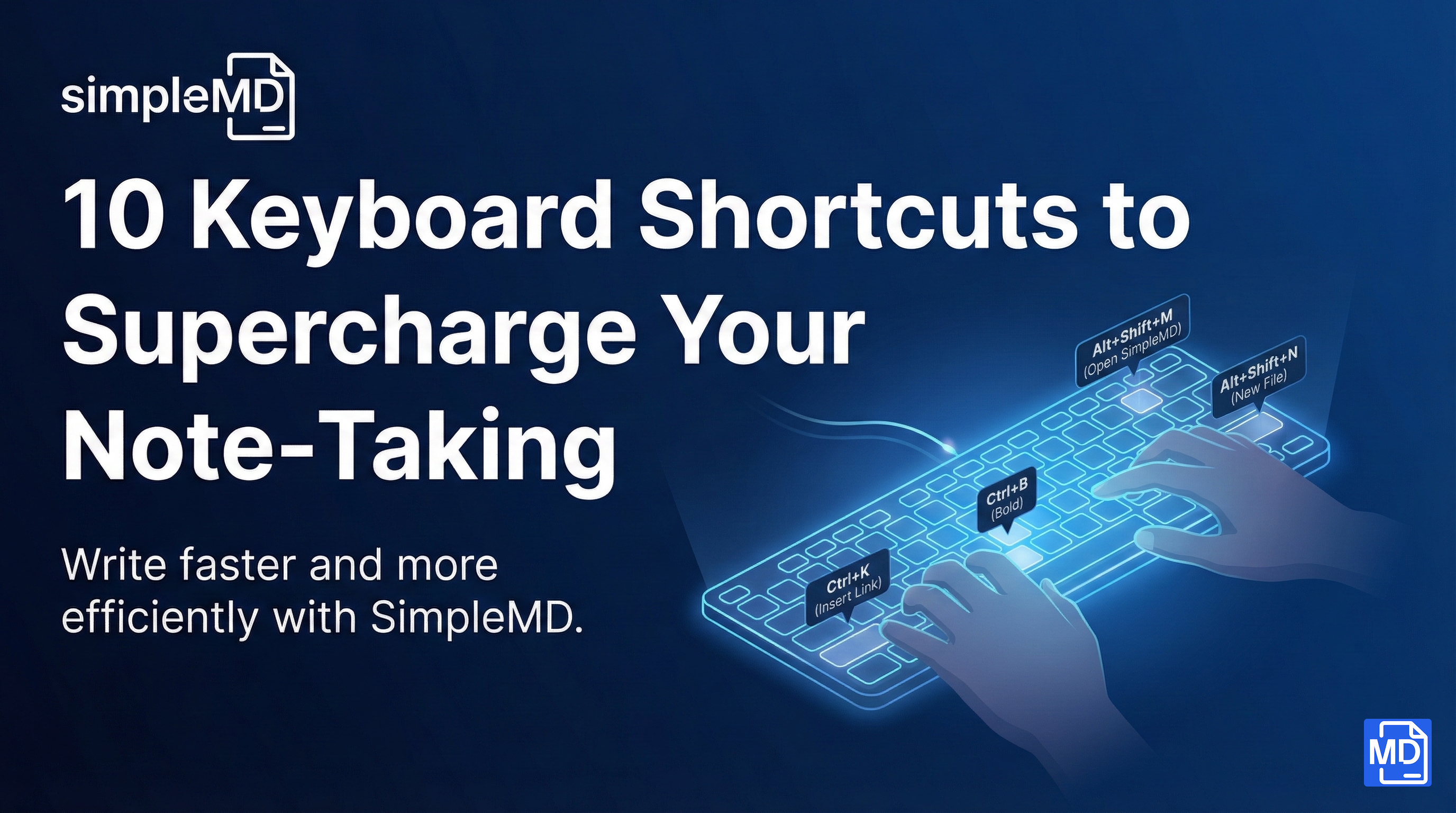
Use the keyboard shortcut
Alt+Shift+M(orOption+Shift+Mon Mac)Open the side panel by right-clicking the icon and selecting "Open in side panel"
The full-window editor gives you a distraction-free writing environment. The side panel lets you take notes while browsing, which is perfect for research.
Step 3: Create Your First Note
When you first open SimpleMD, you will see a welcome document with some example content. Let us create your own note:
Click the New File button (+ icon) in the file explorer on the left
Give your file a name like "My First Note"
Start typing!
Your note is automatically saved as you type. No need to hit Ctrl+S every few seconds.
Step 4: Understanding the Interface
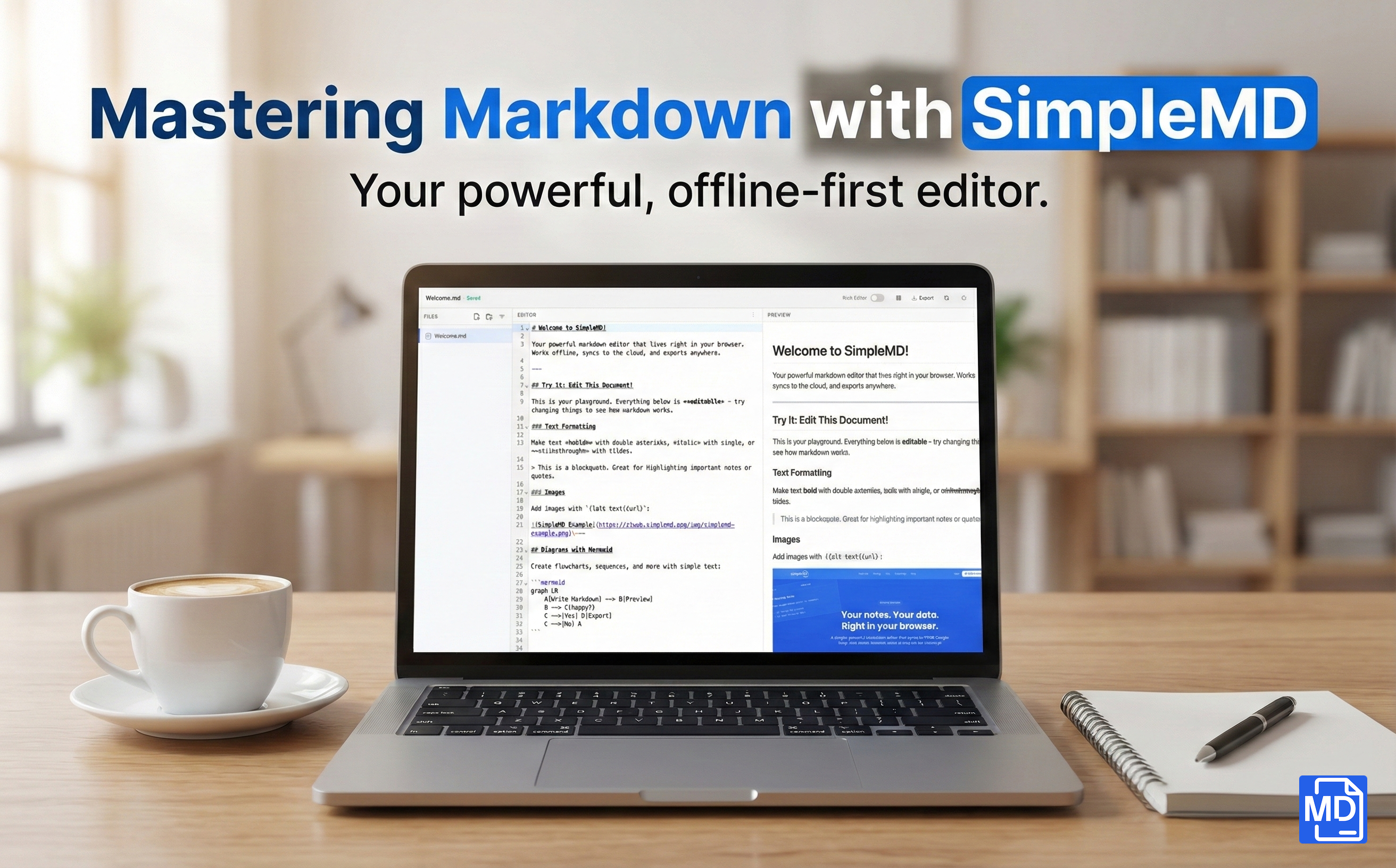
SimpleMD has a clean, simple interface:
Left panel: Your file explorer. Create files and folders to organize your notes.
Center panel: The editor where you write in Markdown.
Right panel: Live preview of your formatted note.
You can toggle the preview panel on or off with the button in the toolbar. You can also use Alt+Shift+P as a shortcut.
Step 5: Write Some Markdown
Markdown is a simple way to format text using plain characters. Here are the basics:
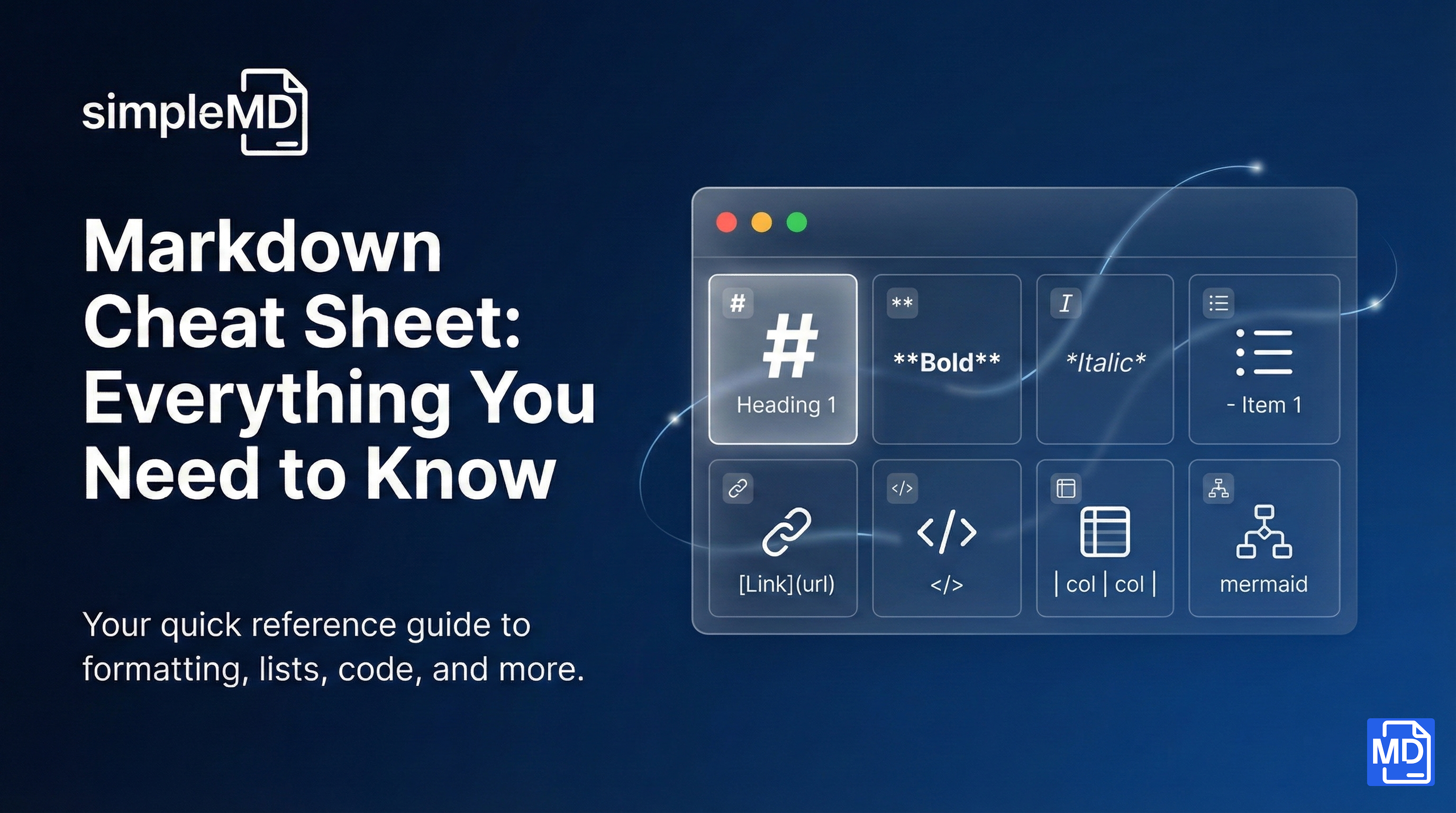
# This is a heading

This is a paragraph with **bold** and *italic* text.

## A smaller heading

- Bullet point one
- Bullet point two
- Bullet point three

1. Numbered item
2. Another item
3. And another

> This is a quote

[This is a link](https://simplemd.app)
As you type, watch the preview panel update in real-time. That is the magic of live preview.
Step 6: Organize Your Notes
As your note collection grows, you will want to keep things organized:
Create folders: Click the folder icon in the file explorer
Move files: Drag and drop files into folders
Rename: Right-click any file or folder to rename it
Delete: Right-click and select delete (do not worry, it asks for confirmation)
What to Explore Next
You have just created your first note in SimpleMD. Here are some features to try:
Export your notes to PDF, HTML, or images using the Export menu
Create diagrams with Mermaid syntax (type triple backticks followed by
mermaid)Sync to Google Drive to access your notes anywhere (Pro feature)
Customize your theme in Settings with light, dark, and high-contrast modes
SimpleMD is designed to get out of your way and let you focus on what matters: your ideas. No feature bloat. No learning curve. Just you and your notes.
Happy writing!
Have questions? Visit our FAQ or contact us.