10 Keyboard Shortcuts to Supercharge Your Note-Taking
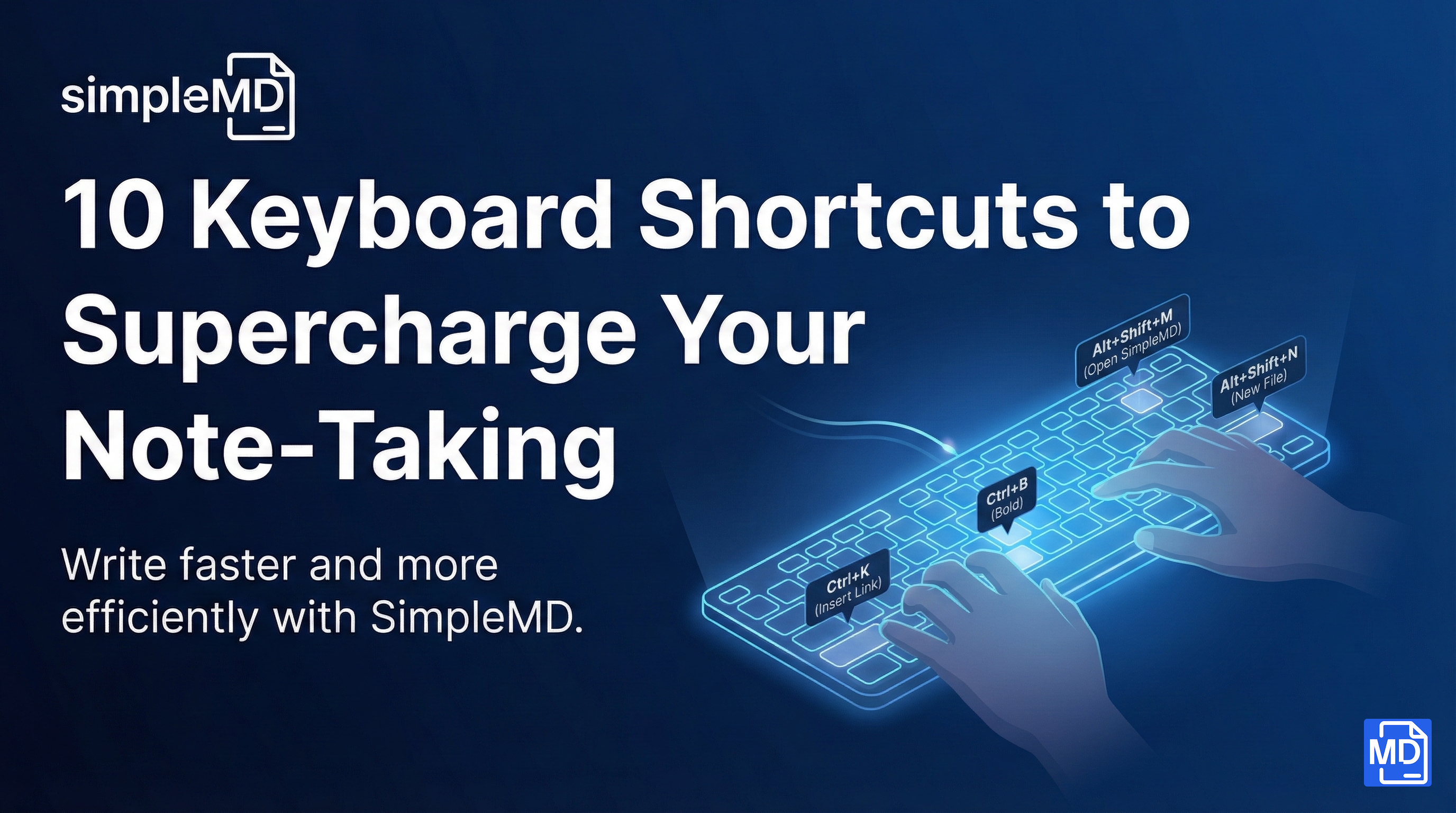
The fastest writers do not reach for the mouse. They keep their hands on the keyboard and let shortcuts do the heavy lifting.
SimpleMD is built with keyboard warriors in mind. Here are 10 shortcuts that will transform how you take notes.
Global Chrome Shortcuts
These shortcuts work from anywhere in Chrome, even when SimpleMD is not open.
1. Open SimpleMD: Alt+Shift+M
Mac: Option+Shift+M
Instantly open SimpleMD in a new tab. No clicking, no hunting for the extension icon. Just press and write.
Pro tip: This is the single most useful shortcut. Memorize it.
2. Create New File: Alt+Shift+N
Mac: Option+Shift+N
Create a new file without opening the file menu. Perfect for capturing quick thoughts before they disappear.
3. Toggle File Explorer: Alt+Shift+E
Mac: Option+Shift+E
Show or hide the file explorer panel. When you need to focus on writing, hide the sidebar for a cleaner view.
4. Toggle Preview Panel: Alt+Shift+P
Mac: Option+Shift+P
Switch between editor-only and editor+preview modes. Sometimes you want to see the formatted output; sometimes you want maximum writing space.
In-Editor Shortcuts
These work when you are actively writing in SimpleMD.
5. Force Save: Alt+Shift+S
Mac: Option+Shift+S
SimpleMD auto-saves your work, but sometimes you want to trigger a save immediately. This is especially useful before closing a tab. This shortcut has you covered.
6. Bold Text: Ctrl+B
Mac: Cmd+B
Select text and press this shortcut to make it bold. Works in both the standard editor and rich text mode.
7. Italic Text: Ctrl+I
Mac: Cmd+I
Make selected text italic. Simple, fast, familiar.
8. Insert Link: Ctrl+K
Mac: Cmd+K
The quickest way to add a hyperlink. Select text, press the shortcut, and paste your URL.
Rich Editor Slash Commands
When using the Rich Text editor mode, type / to access powerful slash commands:
9. Insert Table: /table
Type /table and press Enter to insert a formatted table. No more wrestling with markdown table syntax.
10. Insert Code Block: /code
Type /code to instantly create a code block. Great for developers who document code snippets.
Bonus slash commands:
/blockquote: Insert a quote block/divider: Add a horizontal line/image: Insert an image from URL
Customize Your Shortcuts
Do not like the default shortcuts? Change them!
Go to
chrome://extensions/shortcutsin your browserFind SimpleMD in the list
Click the pencil icon next to any shortcut
Press your preferred key combination
You can customize all the global shortcuts to match your workflow. Maybe you prefer Ctrl+Shift+N for new files, or Alt+M to open SimpleMD. It is your call.
Quick Reference Card
Action | Windows/Linux | Mac |
|---|---|---|
Open SimpleMD |
|
|
New File |
|
|
Toggle Explorer |
|
|
Toggle Preview |
|
|
Force Save |
|
|
Bold |
|
|
Italic |
|
|
Insert Link |
|
|
The Shortcut Mindset
Learning shortcuts is an investment. It feels slower at first. Your brain has to think "what is the shortcut for bold again?" But within a week, these combinations become muscle memory.
The payoff? You will write faster, stay in flow longer, and spend less time clicking through menus. Your future self will thank you.
Start with just three shortcuts:
Alt+Shift+Mto open SimpleMDAlt+Shift+Nto create new filesCtrl+Bfor bold text
Once those feel natural, add more. Before you know it, you will be a SimpleMD power user.
Want more tips? Check out our Markdown Cheat Sheet for formatting tricks.